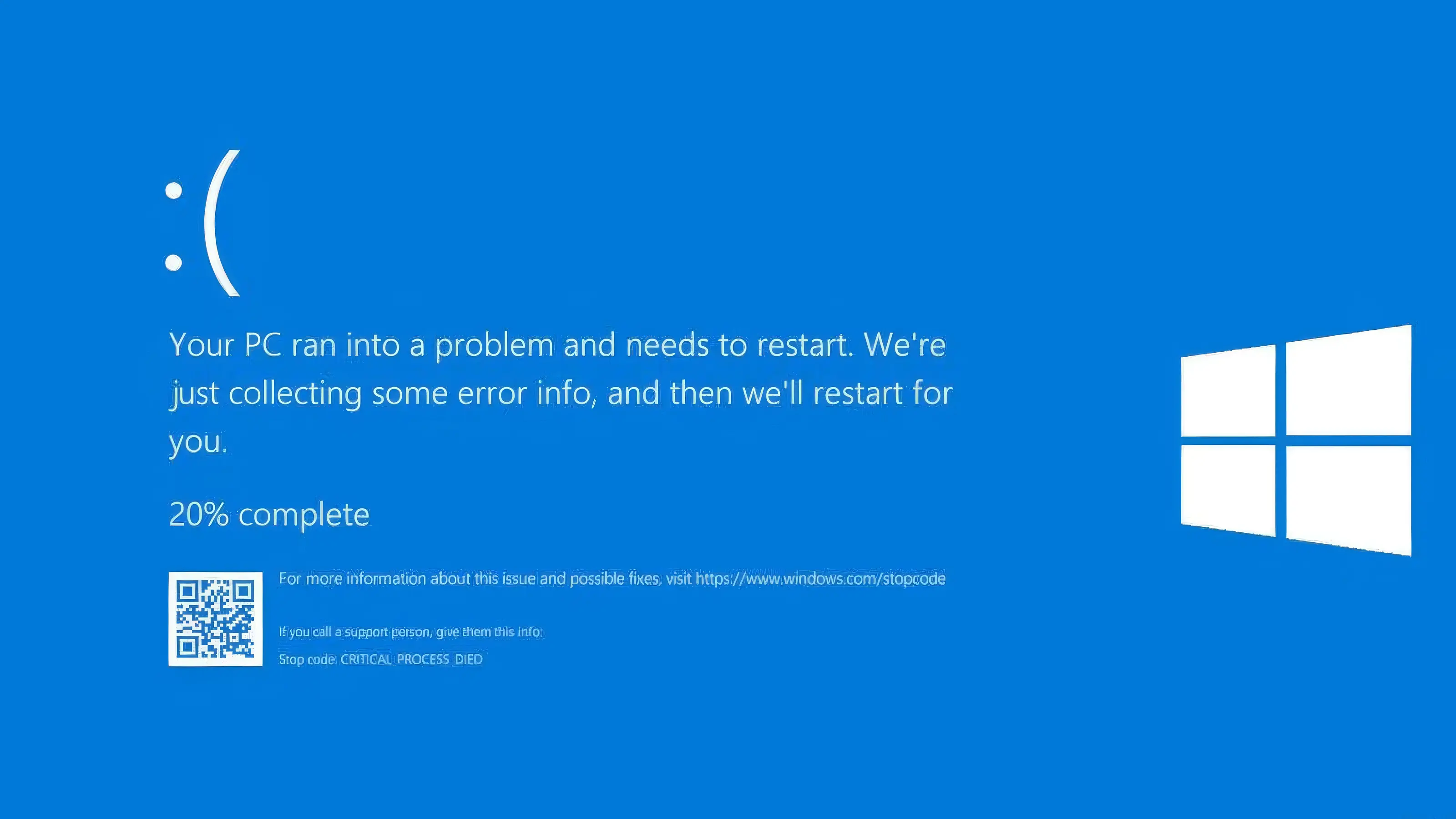
Experiencing a blue screen on your Windows laptop can be alarming. Commonly known as the blue screen of death, it indicates that Windows has encountered a critical error and must restart to prevent further damage. Often, a windows stop code appears on the screen, giving clues about the underlying issue. At zee mobi solutions, we frequently assist users in troubleshooting these errors to restore their system’s stability and prevent repeated crashes.
A blue screen error can happen suddenly, leaving unsaved work at risk. It may appear as a completely blue screen with error messages like DRIVER_IRQL_NOT_LESS_OR_EQUAL or SYSTEM_SERVICE_EXCEPTION. While the initial reaction is panic, understanding the causes and solutions can make recovery straightforward.
Common Causes of Blue Screen Windows 10
Several factors can trigger a blue screen Windows 10:
- Faulty or outdated drivers: Drivers that control hardware components such as graphics cards, network adapters, or printers can conflict with Windows, causing a crash.
- Hardware problems: Defective RAM, hard drives, or overheating CPU and GPU components are frequent culprits.
- Software conflicts: Recently installed applications or Windows updates may not be compatible with your system configuration.
- Corrupted system files: Critical Windows files can become damaged due to improper shutdowns, malware, or failed updates.
Recognizing these causes helps you choose the right solution quickly.
How to Troubleshoot and Fix Blue Screen Errors
Follow these steps to resolve the issue efficiently:
- Check the Stop Code: The code displayed on the blue screen identifies the problem. Write it down before your system restarts.
- Boot into Safe Mode: Safe Mode starts Windows with only essential drivers and services, helping you identify whether recent changes caused the error.
- Update Drivers: Visit the manufacturer’s website to download the latest drivers for your graphics card, network adapter, or motherboard. Windows Update can also automatically install recommended driver updates.
- Test Hardware: Use Windows Memory Diagnostic to check RAM integrity. Run CHKDSK to scan and repair hard drive errors. Overheating components may need cleaning or replacement.
- Remove Problematic Software: Uninstall recently installed programs or roll back Windows updates that may conflict with your system.
- Use System Restore: Restore your system to a point before the error appears. This can often reverse software or driver changes causing the crash.
- Reinstall Windows if Necessary: For persistent blue screen errors, performing a clean installation ensures that all system files are restored to a stable state.
By following these steps, you can reduce the chances of repeated blue screens and keep your system functioning smoothly.
Tips to Prevent Blue Screen of Death
Preventive measures can minimize future blue screen errors:
- Keep Windows and all drivers up to date.
- Avoid installing unknown or unverified software.
- Regularly check your hard drive and memory for errors.
- Maintain system restore points before making significant changes.
- Keep backups of important files to prevent data loss.
Routine maintenance and careful software management can significantly lower the risk of encountering a blue screen.
FAQs
1. What is a blue screen error?
A blue screen error, or blue screen of death, occurs when Windows encounters a critical problem that prevents it from running safely.
2. Why does blue screen Windows 10 happen?
It often happens due to driver conflicts, hardware failures, corrupted system files, or incompatible software.
3. Can I fix it myself?
Yes. Many blue screen errors can be fixed by updating drivers, uninstalling recent programs, running hardware diagnostics, or using System Restore.
4. Is my laptop permanently damaged?
Not always. Most blue screens are temporary issues that can be resolved without replacing hardware.
5. How can I prevent future blue screens?
Keep Windows and drivers updated, avoid unverified software, check hardware regularly, and create system restore points.