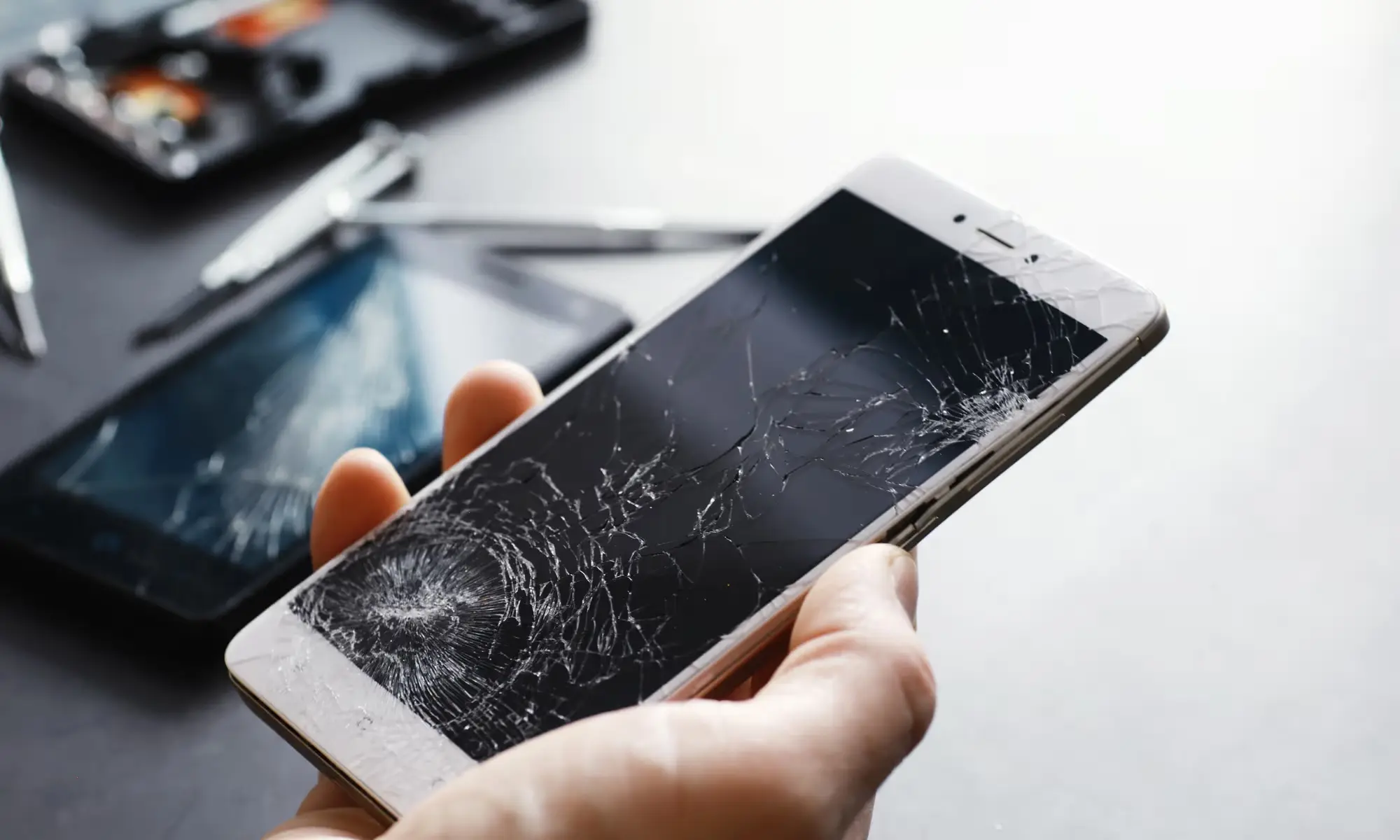
Accidentally damaging your smartphone can be stressful, especially when important files, photos, or contacts are at risk. Whether your device has a broken screen, shows a black screen, or has an unresponsive touch, there are simple steps to recover your data safely. Understanding these steps ensures that you do not lose precious memories or essential documents.
Methods to Access Your Smartphone When the Screen is Damaged
Check the Device and Connect to External Screens
The first step is to evaluate the extent of damage. If your screen is broken but the phone still powers on, you can connect your smartphone to a TV screen or PC monitor using an HDMI or USB connection. This allows you to view the display externally, so you can access your apps and files without relying on the touchscreen. If your phone’s screen is completely unresponsive, this method can make data retrieval much easier.
Access Your Files Using a USB Cable
Even with a damaged screen, most smartphones allow file access through a USB cable. Connect your device to a computer and enable file transfer mode if prompted. This way, you can access your files via USB cable and copy important photos, videos, and documents to your PC or external storage. Always handle the device carefully to avoid causing further damage.
Use a Keyboard or Mouse for Navigation
If your touchscreen is not responding, using a USB keyboard or mouse can help. Many Android devices support OTG adapters, allowing you to connect external input devices. This makes it possible to navigate the phone, unlock it, or select files for transfer even when the display or touch input is damaged.
Check the Memory Card
Some smartphones store additional data on a memory card. If your phone has a memory card, remove it and use a card reader to access photos, videos, and documents. This is often the quickest way to recover media when the device itself cannot be accessed directly.
Back Up Data Remotely
If your device was previously set to back up data online, you can back up data remotely using cloud services. Android users can use Google Drive, while Samsung users can log in via Samsung Cloud login. iPhone users can access iCloud to download contacts, messages, and media. Cloud backups ensure that even if the device cannot be physically repaired immediately, your essential data remains safe.
Use Smart Switch for Android Devices
Android users can also use Smart Switch to transfer or back up files to another device or computer. Smart Switch allows you to copy photos, videos, messages, and other important files quickly and safely. It is especially useful when recovering data from a phone with a broken phone screen or unresponsive touchscreen.
Prevent Future Data Loss
Once you have recovered your files, it is important to take preventive steps. Regular backups to the cloud or an external drive reduce the risk of losing data in the future. Handle your phone carefully and consider using a protective case and screen protector to avoid damage.
- Enable automatic cloud backup for photos and messages.
- Sync important documents to multiple locations.
- Check memory cards periodically and transfer critical files to safe storage.
FAQs
1. Can data be recovered from a completely broken phone?
Yes. Connecting it to a PC, using cloud backups, or transferring files via Smart Switch can help recover your data.
2. How do I recover photos from a damaged screen?
Use a USB connection to a computer, check memory cards, or use cloud backups to retrieve images safely.
3. What if the touchscreen is unresponsive?
Connect a USB keyboard or mouse to navigate and transfer files without using the touchscreen.
4. Can cloud backups work if the phone screen is broken?
Absolutely. Services like Samsung Cloud login or Google Drive allow you to access your backed-up data from another device.
5. How do I transfer files from a phone with a black screen?
Connect your phone to a computer, use Smart Switch, or access cloud backups to recover your files safely.