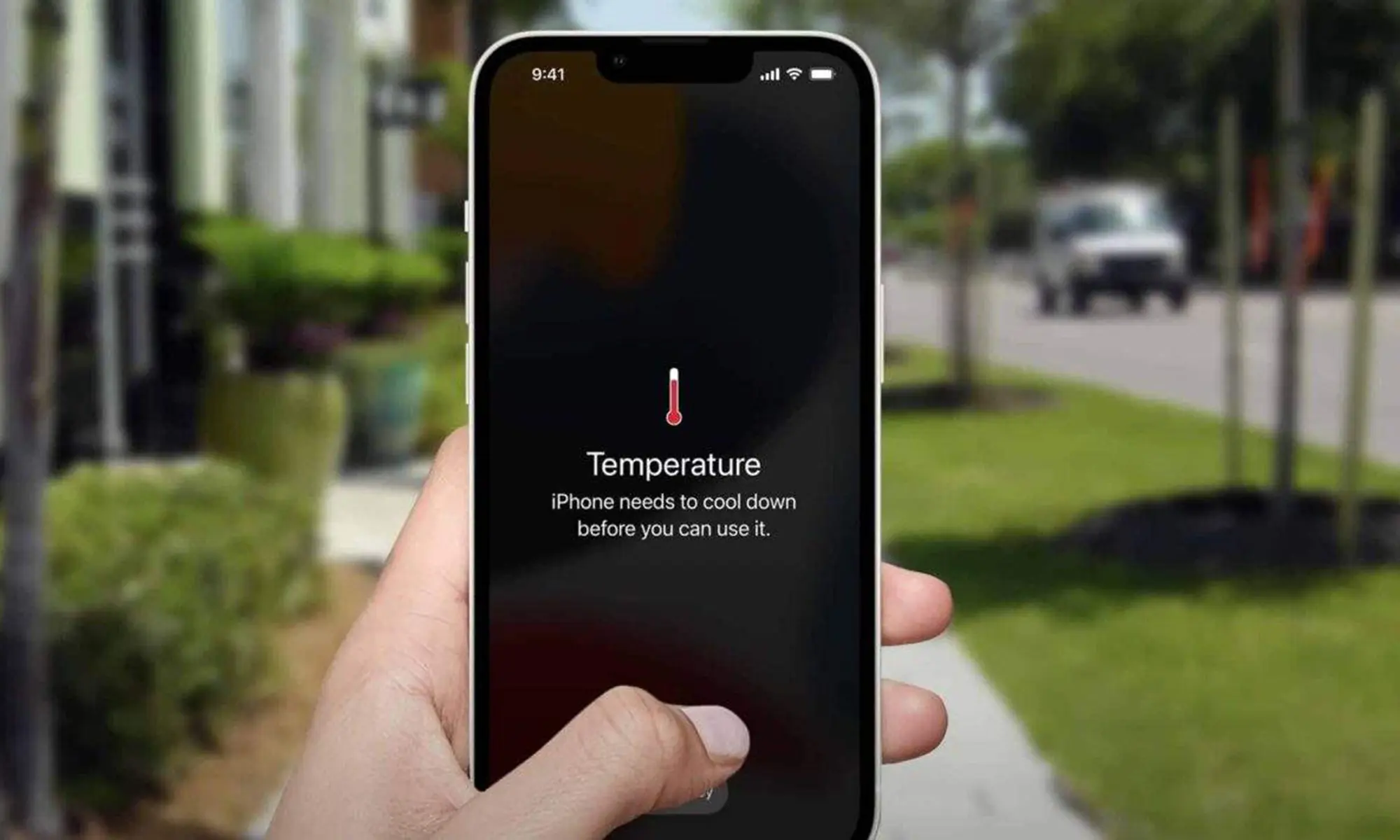
It Is Really Unsettling When a Phone Will Not Switch On You push the power button, and nothing shows up. Or you see SOS on the screen instead of signal bars. Calls stop. Data stops. Stress starts.
Today phones hold work files, bank apps and family photos. According to Forbes, people now spend more than four hours daily on mobile devices. This reflects how much we depend on them.
When your device fails, you need clear steps. Let us go through the most common causes and fixes in simple language.
Check Battery and Power First
Many phones shut down due to low battery. Even if you charged earlier, battery health may have dropped. Connect the original charger. Leave it plugged for at least 20 minutes. Then press and hold the power button.
If the phone still is not doing anything, attempt a different lead and a connector. Faulty charging tools often create power problems. Also check charging port for dust. Clean gently using a soft brush.
Should the screen remain dark, though the phone is buzzing, the screen itself may be broken.
When Phone Shows SOS Mode Only
Sometimes phone turns on but shows SOS instead of signal. You may ask, Why is my phone stuck in SOS mode. This usually happens due to SIM issue, network outage or software glitch.
Steps to Fix SOS Mode
-
Remove SIM card. Clean it gently. Insert again properly. Restart the phone.
-
Switch airplane mode on and off. This forces network refresh.
-
If network still fails, check carrier coverage in your area. Temporary tower problems can cause signal loss.
iPhone Users Facing SOS Only Signal
Many users search SOS only on iPhone how to fix when they see emergency text on screen. iPhone enters SOS mode when it fails to detect network.
Steps for iPhone SOS
-
Restart the device.
-
Go to Settings. Tap Mobile Data. Turn it off and on.
-
Reset network settings if needed. This clears saved WiFi and carrier profiles.
-
If issue continues, update iOS to latest version. Updates fix network bugs.
How To Turn Off SOS Feature
Sometimes users activate emergency SOS by mistake. If emergency feature keeps triggering, adjust settings.
Steps to Turn Off SOS on iPhone
-
Go to Settings. Tap Emergency SOS. Disable call with side button if not needed.
For newer models:
-
How to turn off SOS on iPhone 15: Open Settings. Tap Emergency SOS. Review auto call options. Disable unwanted triggers.
-
How to turn off SOS on iPhone 16: Apple keeps similar menu structure. Adjust side button press setting carefully.
Model Specific SOS Problems
Some older devices face frequent network glitch. Many users report iPhone 13 stuck in SOS mode after software update.
Fix Steps
-
Reset network settings first. If issue stays, perform factory reset after backup.
-
If you suspect carrier issue, contact network provider. Always check carrier website or social media before assuming device fault.
New model users may also search How to get SOS off my iPhone 17 if network drops after update. Restart device. Update carrier settings. Remove and reinsert SIM. These steps solve most cases.
When Phone Does Not Turn On At All
If device shows no screen, no vibration and no charging sign, hardware fault may exist. Battery, power IC or motherboard could fail.
Force Restart Steps
-
For most iPhones: press volume up, then volume down, then hold side button until logo appears.
-
For Android devices: press and hold the power and lower volume buttons at the same time, for ten seconds.
If force restart fails, do not try to open phone at home. Internal parts need expert tools.
Quick Troubleshooting Checklist
Before visiting repair centre, try these steps:
-
Charge phone for 20 minutes
-
Use original cable and adapter
-
Clean charging port
-
Restart device
-
Remove and reinsert SIM
-
Reset network settings
These steps fix many common issues.
When To Seek Professional Help
- If phone heats up while charging, stop using it. For expert service, contact mobile phone repairs.
- If screen stays black after charging and force restart, hardware damage likely exists. You may also visit phone screen repair
- If water entered phone, avoid switching it on repeatedly. For battery replacement after water damage, see phone battery replacement
Professional technicians test battery health, charging circuit and motherboard safely. They also check data safety before repair. Early repair reduces risk of data loss. Learn more at Zeemobi Solutions.
Prevent Future SOS And Power Issues
- Keep phone updated. iPad users can also check ipad repairs for support.
- Avoid third party chargers. Consider using high-quality wireless chargers; see wireless chargers guide.
- Do not let battery drop to zero often.
- Use protective case to avoid physical shock.
- Back up data regularly. Network and power problems sometimes lead to reset. Backup keeps your data safe.
- Keep SIM clean and avoid bending. Replace old SIM card if it shows frequent signal loss. For laptop power issues, visit laptop repair or macbook repairs.
Points to Ponder
Phone power or SOS problems create stress but most cases have simple fixes. Start with battery check. Then move to SIM and network steps. Adjust emergency settings carefully. If you are in Coburg area, check MacBook Repairs for local support.
If you act early, you avoid bigger damage. Always use safe troubleshooting steps. Avoid random online hacks. Follow official settings menu only.
Modern phones act like mini computers. They need regular care. Small habits like updating software and using good charger increase device life.
If your phone refuses to turn on even after all steps, seek expert support. Quick action protects both device and data. Stay calm. Follow the right process. Most SOS issues resolve faster than you expect.