[vc_row type=”in_container” full_screen_row_position=”middle” column_margin=”default” scene_position=”center” text_color=”dark” text_align=”left” overlay_strength=”0.3″ shape_divider_position=”bottom” bg_image_animation=”none”][vc_column column_padding=”no-extra-padding” column_padding_position=”all” background_color_opacity=”1″ background_hover_color_opacity=”1″ column_link_target=”_self” column_shadow=”none” column_border_radius=”none” width=”1/1″ tablet_width_inherit=”default” tablet_text_alignment=”default” phone_text_alignment=”default” overlay_strength=”0.3″ column_border_width=”none” column_border_style=”solid” bg_image_animation=”none”][vc_column_text]Let’s be honest—iPhones are smooth until the day they suddenly aren’t. One minute everything’s working like a dream, and then out of nowhere… Face ID stops working, battery drains for no reason, or the phone heats up like it’s sitting on a grill.
The good part? Most iPhone problems don’t actually need a trip to the Apple Store. You can sort out a lot of them yourself if you know where to look. So, here is a simple, no-nonsense breakdown and 5 common issues or ways to quick fix them without overthinking.
Rapid Battery Drain
This one’s a classic. Doesn’t matter if it’s a brand-new iPhone or one you’ve had for a couple of years, random battery drain happens. Sometimes you’re not even using the phone and the percentage just melts away. Most of the time, it’s background stuff running quietly.
Quick fixes that usually work:
- Check Battery Usage → Settings > Battery. See which apps are draining power and shut them down.
- Turn off Bluetooth, location, and AirDrop when not in use.
- Switch on Low Power Mode.
- If the iPhone’s older, phone battery replacement might be the real answer.
- A quick restart after doing all this often helps instantly.
Overheating
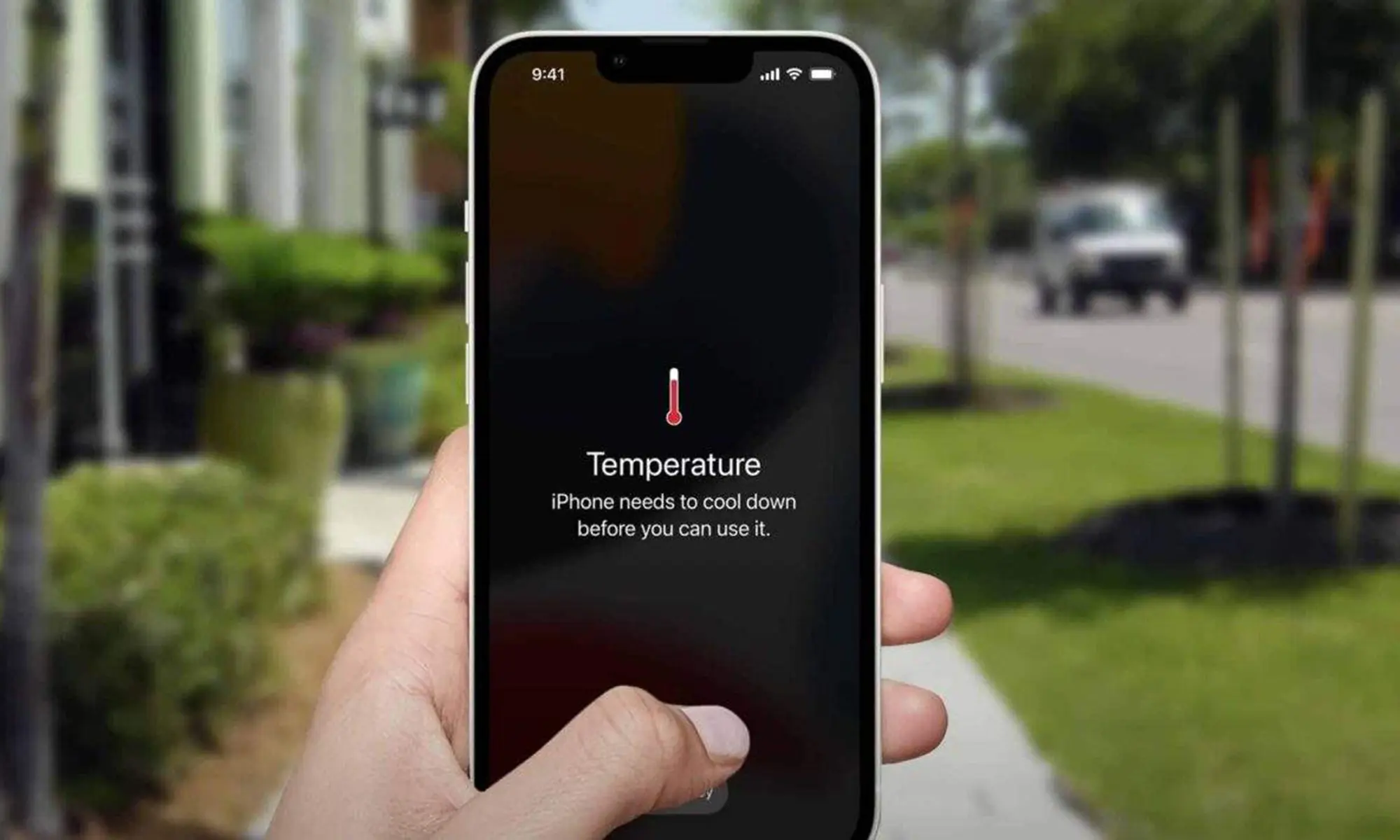
Modern iPhones are beasts—5G, heavy apps, editing tools, background AI—it’s a lot. So yes, overheating is still a thing. Warm is okay. Uncomfortably hot is not.
Why It Happens
• Gaming or editing for long sessions
• Charging while doing heavy tasks
• Hot weather
• Cheap or non-certified chargers
How to Cool It Down Fast
- Remove the case and let it breathe.
- Close unused apps and pause big downloads.
- Avoid using it heavily while charging.
- Use Apple-certified chargers—they help.
- If it overheats during light use, update iOS for performance fixes.
Face ID Not Working
When Face ID refuses to cooperate, it’s annoying. You’re there staring at the screen, moving your face around like a fool, and it still makes you type your passcode. It often happens after screen repairs or updates.
- Fix it easily: = Clean the front camera area.
- Reset Face ID → Settings > Face ID & Passcode.
- Update iOS.
If the screen was replaced locally, get it checked—non-genuine parts can mess with Face ID. For help, visit our mobile phone repairs team.
Wi-Fi and Bluetooth Glitches
You try to connect your Bluetooth headphones or Wi-Fi and it just spins or drops. Usually, it’s cached settings, a network hiccup, or a small bug.
- Try these: = Turn on Airplane Mode for a few seconds, then turn it off. Forget and reconnect to the network or device. Reset Network
- Settings (Settings > General > Transfer or Reset iPhone > Reset > Network Settings). Restart your phone.
If you’re using a VPN, disable it temporarily. - Lag, Freezes & Random Glitches
Even fast iPhones get sluggish sometimes. Between background AI, full storage, and constant syncing, lag and freezes happen.
What helps:
- Clear 10–15% storage space.
- Close unused apps.
- Update apps and iOS.
- Restart your iPhone often.
In worst cases, a factory reset (after backup) gives a clean slate. For persistent hardware slowdowns, visit our hardware-support center.
Bonus Habits That Prevent Problems
You can avoid most headaches with these habits: Keep iOS updated. Use genuine accessories. Install only essential apps. Back up regularly.
Need software help? Try our software installation and troubleshooting service for fast fixes.
When It’s Time to Get Help
Sometimes, no matter what you try, the problem sticks around. That’s when it’s time for professional repair.
• Overheating even on standby
• Face ID failing after resets
• Wi-Fi issues unique to your device
• Random restarts that persist
Our technicians use updated diagnostic tools to identify faults quickly. You can also schedule an network and software support visit.
Final Thoughts
Here’s the truth: iPhones aren’t perfect. But most iPhone problems don’t need panic. A quick settings tweak, restart, or reset usually solves it. Treat your phone like the tiny computer it is—clean it, update it, don’t overload it—and it’ll stay smooth. Simple fixes. Fast results. No stress.[/vc_column_text][/vc_column][/vc_row]