You take out your iPhone and punch in the passcode, but the screen reads “iPhone Unavailable.” You try again, but the wait gets longer. Now you’re worried about your photos, contacts, WhatsApp chats, and other files saved on the phone.
If you’ve forgotten your passcode, don’t rush to reset your iPhone. You could lose files that haven’t been backed up. There are a few things worth checking before you erase anything.
How to Restore Data From a Disabled iPhone or Forgotten Passcode Without Losing Your Photos
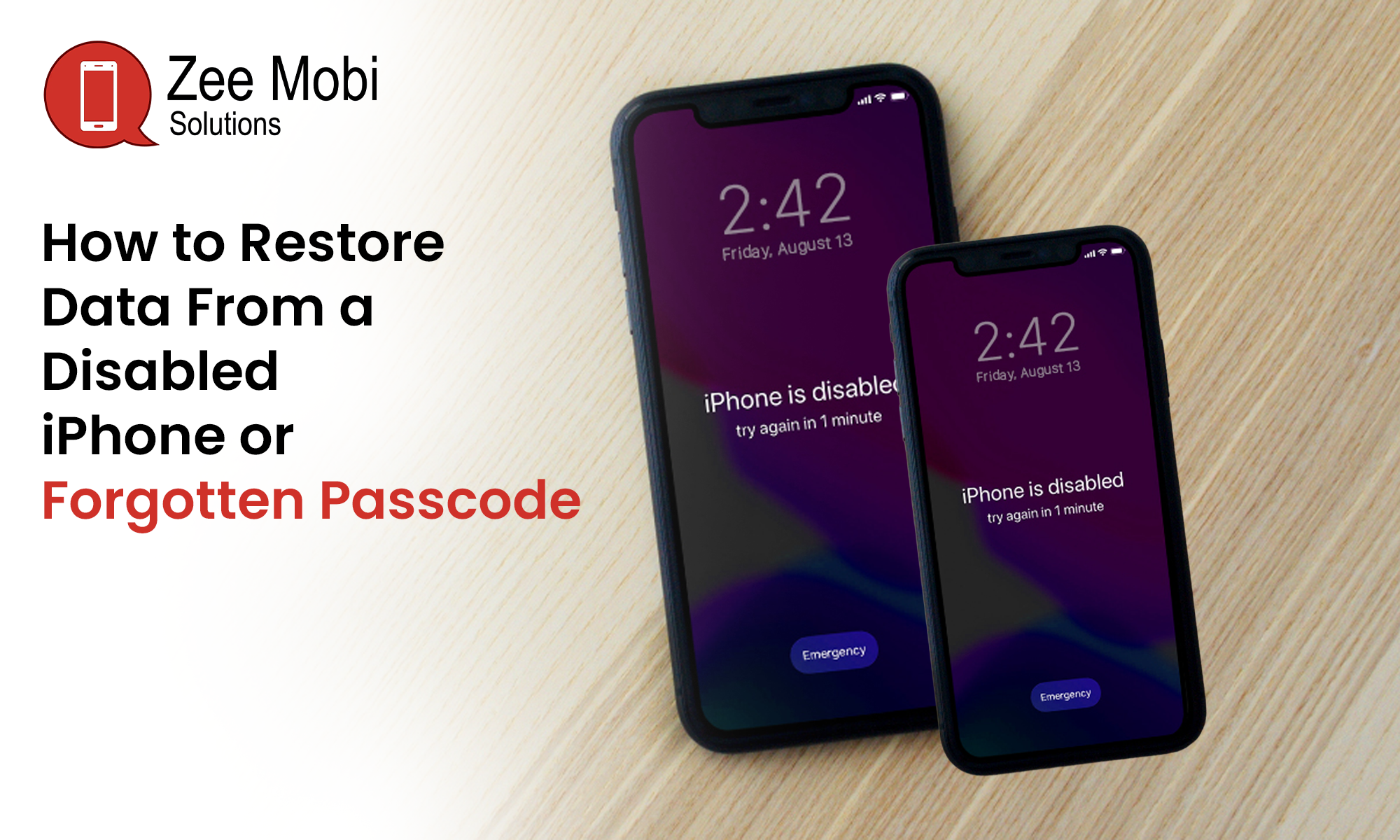
When someone enters the wrong passcode too many times, the iPhone stops accepting further attempts for a while. This protects your personal information if someone else gets hold of your phone.
Older iPhones may display “iPhone is Disabled,” while newer versions show “Security Lockout” or “iPhone Unavailable.”
Whether you can get your files back depends mainly on your backup history, iOS version, and whether you still remember a previously used passcode.
Check Whether Your Photos Are Saved in iCloud
Before doing anything else, find out what you’ve already saved online.
If you regularly use iCloud Photos, your pictures and videos might still be there, even when you can’t unlock your iPhone.
Here’s what to do:
- Open iCloud.com on another phone or computer.
- Sign in using your Apple Account.
- Check Photos, Contacts, Notes, and iCloud Drive.
- Look for the files you’re worried about losing.
- Check whether you have an older iPhone backup.
Remember that iCloud Photos and iCloud Backup are two different things. Your photos may be synced separately from your phone backup.
Try Your Previous Passcode Before Resetting
Did you change your iPhone passcode recently?
If your phone runs iOS 17 or later, Apple may let you use your old passcode within 72 hours of changing it.
On a supported iPhone, tap “Forgot Passcode?” and follow the instructions for using your previous passcode, if that option appears.
This method won’t erase your photos or messages.
However, it only works during Apple’s allowed recovery period. If you changed your passcode months ago, you’ll need another option.
Restore Your Disabled iPhone Using a Computer
If you cannot remember your passcode, you may need to erase your iPhone and set it up again.
You’ll need a Mac or Windows computer and a charging cable.
Follow these steps:
- Switch off your iPhone.
- Connect it to your computer while holding the correct recovery button for your model.
- Wait until the recovery screen appears.
- Open Finder on Mac or Apple Devices on Windows.
- Select your iPhone.
- Choose Restore and follow the instructions.
- Once the process finishes, restore an available backup.
Remember: Recovery Mode removes the existing data from your iPhone. Without a backup, you generally cannot get those files back.
Restore Your Files From an Old Backup
Have you ever backed up your iPhone to a laptop or desktop computer?
If yes, check whether that backup is still available.
When you reset your phone, you will be able to restore the saved information using Finder, Apple Devices, or iTunes, depending on your computer.
Choose the backup you want and allow the transfer to finish.
If you protected the backup with a password, you’ll need that password to restore it.
People searching for Laptop Repairs Melbourne or Laptop Repairs Coburg may also need help getting an older computer working before accessing a saved iPhone backup.
What Happens If You Never Backed Up Your iPhone?
This is where things become difficult.
Modern iPhones encrypt their stored information. Without the correct passcode, you generally cannot access files that exist only on the locked phone.
Some websites advertise software that claims to recover everything from a disabled iPhone. Be careful with these promises.
Before paying for anything, check whether you’ve saved information elsewhere.
Look through Google Photos, Google Drive, OneDrive, Gmail, and other accounts you previously used.
You might find important pictures, documents, or contacts there.
Check Whether Your iPhone Screen Is Causing the Problem
Sometimes the passcode isn’t the problem at all.
A cracked screen may register touches you never made. This can cause repeated wrong passcode entries and eventually lock the phone.
If your screen behaves strangely, avoid pressing random numbers.
A technician offering Phone Screen Repair Melbourne or Phone Screen Repair Butler may be able to fix the touchscreen.
Similarly, Mobile Phone Repair Coburg services can help check whether or not a damaged screen is interfering with normal phone use.
Repairing the screen may let you enter the correct passcode, provided the phone hasn’t reached a state requiring a reset.
Get Your Phone Checked Before Erasing It
If your iPhone has physical damage, ask a repair technician to check it before attempting a factory reset.
A damaged charging port, faulty battery, or broken display can make an existing lockout problem harder to handle.
For instance, customers looking for Mobile Phone Battery Replacement Melbourne may have an iPhone that keeps shutting down during use.
Those searching for Mobile Phone Repairs Healesville or Mobile Phone Repairs Melbourne should explain exactly what appears on the screen.
Tell the technician whether you remember your passcode and whether you have an iCloud backup.
That information helps them understand what can be repaired and what data may still be available.
Keep Your iPhone Data Safe in the Future
Once your phone works again, make regular backups part of your routine.
- Turn on automatic iCloud Backup.
- Check that your backups actually finish.
- Save important photos in cloud storage.
- Keep your Apple Account details somewhere safe.
- Back up your phone before major software updates.
- Make an encrypted computer backup occasionally.
You can contact Zee Mobi Solutions for help with iPhone repair problems. Share your phone model, the message appearing on its screen, and whether you’ve made a backup before.
Frequently Asked Questions
Can I recover photos from a disabled iPhone?
Yes, if your photos are saved in iCloud, another cloud service, or an available backup.
Can I unlock my iPhone without deleting data?
You may be able to use your previous passcode within 72 hours of changing it on supported iPhones.
Will Recovery Mode delete my photos?
Yes. Restoring through Recovery Mode erases locally stored files. Backed-up or synced photos can be recovered.
Can a repair shop unlock my disabled iPhone?
A repair shop can check hardware problems, but it cannot bypass modern iPhone encryption to retrieve protected data.
What should I do if I forgot my iPhone passcode?
Check your previous-passcode option and existing backups before using Apple’s reset or recovery process.